Key Takeaways
- Apple’s OS 26 adds device migration capabilities to Apple Business Manager, making it easy to switch devices between MDMs.
- Devices can be moved without having to re-enroll them, keeping all user data and settings intact.
- The migration process is managed entirely in the ABM portal, with no manual steps or changes needed on the MDM server side.
- This feature supports both supervised and unsupervised devices, and it is useful for organizations switching to cloud management, changing vendors or reorganizing.
With Apple’s OS 26 release, IT admins using Apple Business Manager (ABM) or Apple School Manager (ASM) have a great new tool in their toolbelt: device migration. This makes switching devices between MDM platforms much easier, with minimal disruption for end users.
Here, we’ll unpack what you need to know, and how ABM device migration makes it incredibly easy to switch to Ivanti Neurons for MDM.
Key ABM device migration features
Apple’s new ABM device migration features make it easier to move devices between different MDM solutions, without manual steps or interrupting users.
No manual re-enrollment. You can transfer devices from one MDM server to another, or from one vendor’s MDM to another (including Ivanti Neurons for MDM), without erasing or manually re-enrolling devices. All existing user data and device configurations will automatically be applied during migration. The end user will be able to complete the re-enrollment with two guided clicks: one for restarting the device and one for re-enrollment into the new MDM.
Enrollment deadlines. This is the newest feature introduced by Apple in ABM and ASM. You can set and enforce deadlines for moving devices to the new MDM instance. If a device isn’t enrolled in time, it will be locked and the user will be asked to finish enrollment. With this deadline you will be able to trigger the automated process for re-enrollment in the new MDM. It will prompt the end user with screens to complete the re-enrollment seamlessly.
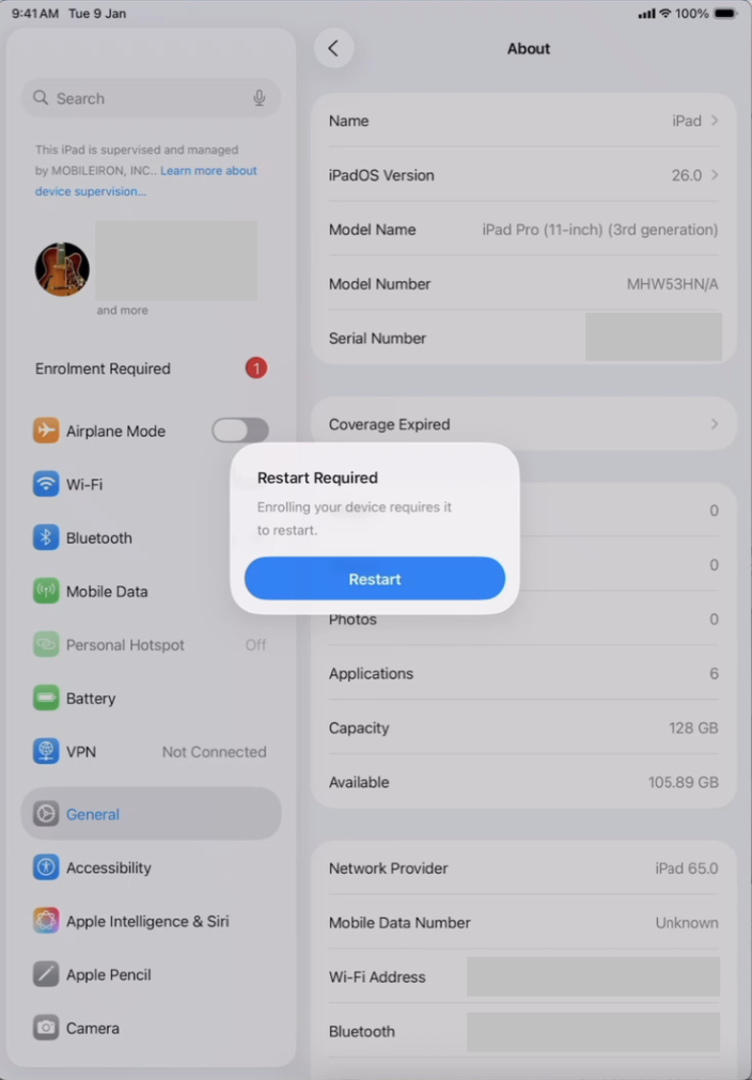
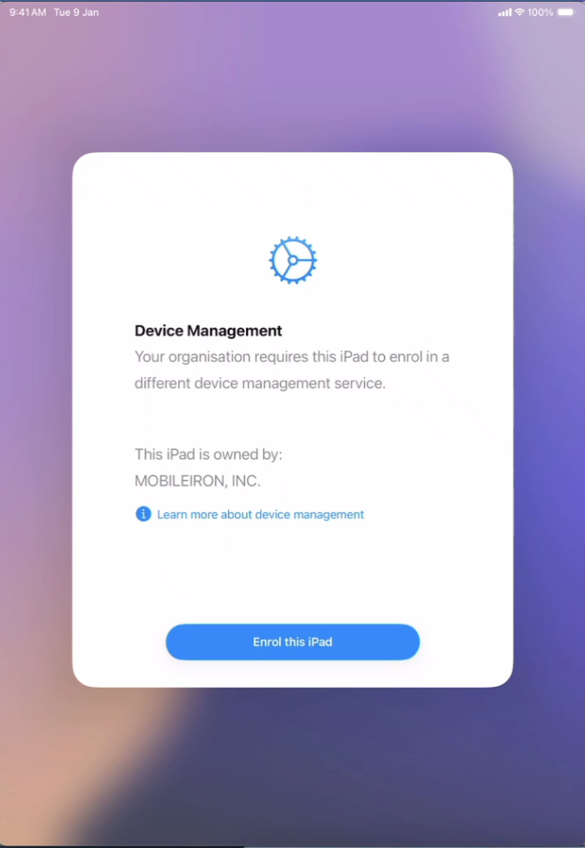
End user experience. The end user experience won't notice any changes during migration, except if the enrollment deadline has passed. Once the migration is complete, the user will get a prompt to restart the device. After the device restarts, the end user will get a prompt to re-enroll the device in the new management solution, which takes one click.
API-driven. The process can also be managed through the ABM or ASM portal using Apple’s new APIs (which you need to activate). This means that customers that use an API infrastructure can bulk assign or unassign devices with the new Apple ABM APIs without having to access the ABM console.
ABM device migration use cases
When would you use this feature? Here are a few key use cases.
Cloud migration
ABM device migration allows you to move from on-premises MDM to cloud-based MDM without re-enrolling devices. For Ivanti customers, this feature makes it easy to move to Ivanti Neurons for MDM from Ivanti Endpoint Manager (for MacOS) or Ivanti Endpoint Manager Mobile (for all Apple devices).
Switching MDM providers
ABM device migration simplifies switching from another MDM provider to Ivanti Neurons for MDM, or consolidating all type of devices (Android, Windows, Apple,) on a single platform from MDMs that only manage Apple devices, such as Jamf or Kandji.
School district device realignment
Educational institutions can realign devices between departments or campuses while maintaining all Apple management and assignment settings.
Mergers, acquisitions or reorganizations
If you’re combining or separating IT infrastructure due to M&A or reorganization, you can move devices to new MDM environments with minimal user disruption.
Setting up ABM device migration: a step-by-step guide
Before you begin
There are two important considerations before you begin:
- Device migration only works on devices running iOS 26, iPadOS 26 or macOS26 (or later). Make sure your devices are updated first.
- You don’t need to make any changes on the MDM server side to support device migration, but target MDM servers should be prepared to receive new device assignments and enrollment requests.
Device Migration via the ABM console
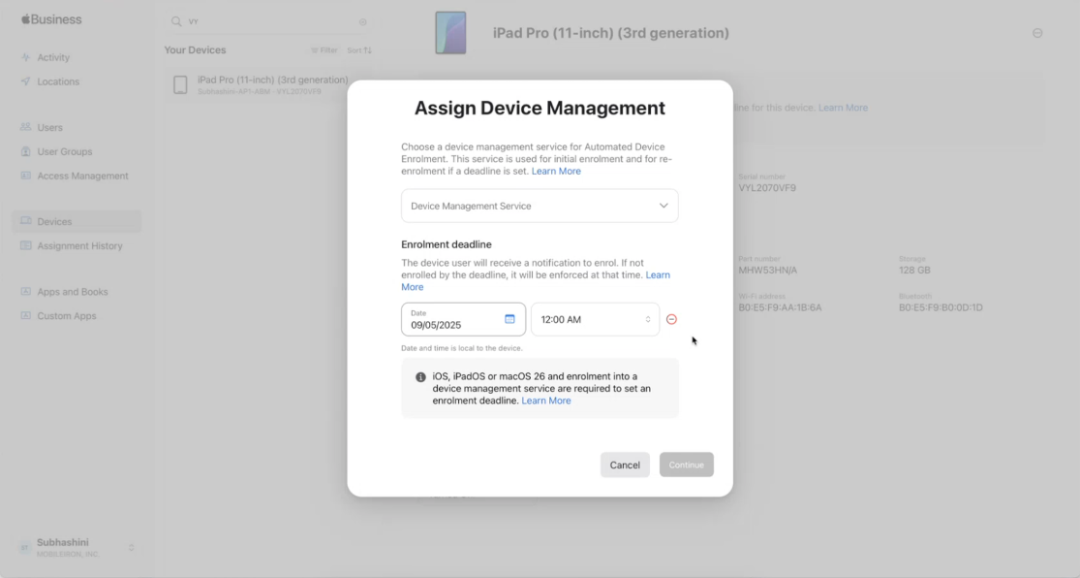
Sign in to Apple Business Manager and navigate to Devices. From here, use the search bar to find the target devices by serial number, order number or other identifiers. Then, select the devices you wish to set a migration deadline for.
Next, review the device details: Click on the device to open its detailed view and confirm that it is assigned to the correct MDM server. You can now set the migration deadline.
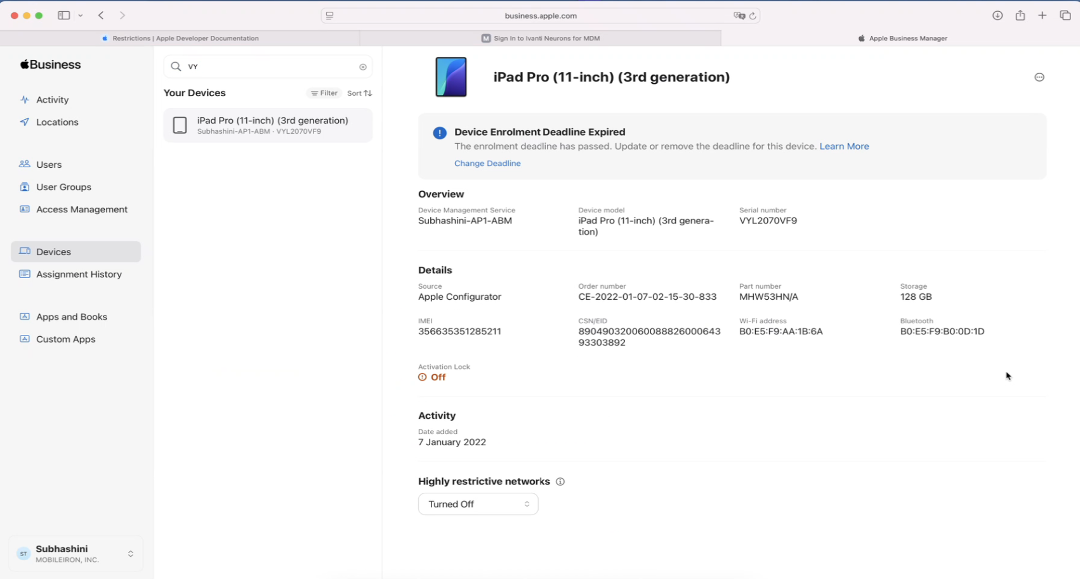
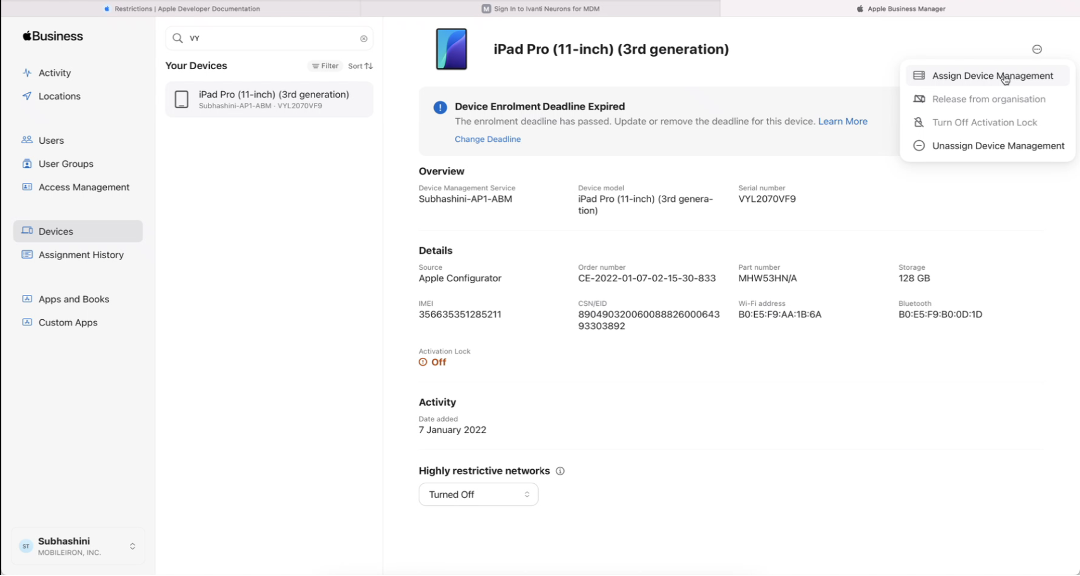
From here, click on Assign Device Management.
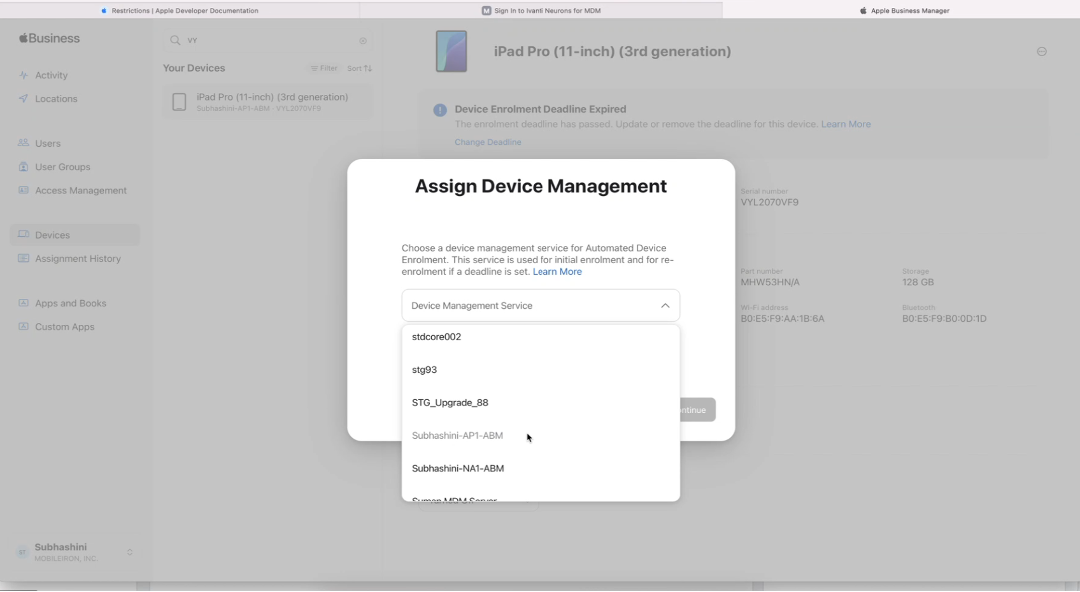
In the pop-up, you can choose the new MDM organization that the device needs to be assigned to.
Next, choose the deadline.
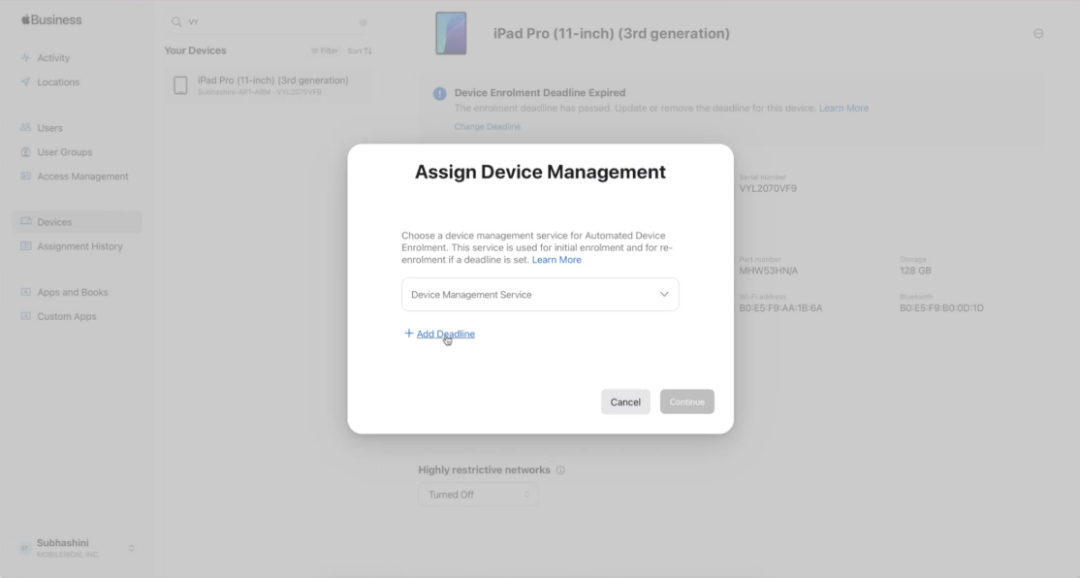
Select the desired date and time for the deadline. This is the final date users have to migrate their device to the assigned MDM server. If users don’t follow the prompts they’ll be locked out the device. Then, click Continue.
On the device the user will receive a notification to restart their device.
After restarting, the device will request the user to enroll in the new management service.
Device migration via APIs
Setting up ABM device migration via APIs is simple, and it’s done completely in ABM (or ASM), no matter which MDM you are switching to or from.
First, log in to your Apple Business Manager or Apple School Manager account and navigate to Settings > Device Manager Settings.
Then, review and enable the required APIs to allow device migration. (If you’re not sure how, check the Apple admin guide for step-by-step help.)
Once the APIs are enabled, you can simply follow Apple’s migration workflow to select devices and designate the new target MDM server. Optionally, you can set an enrollment deadline for migrated devices.
Additional ABM device migration resources
If you need more detailed information, you can refer to:
FAQs
What is Apple Business Manager (ABM) device migration?
ABM device migration is a new feature that allows organizations to move Apple devices from one MDM to another without manual re-enrollment.
Who can use ABM device migration?
IT administrators using Apple Business Manager (ABM) or Apple School Manager (ASM) with devices running iOS 26, iPadOS 26 or macOS 26 (or later) can use device migration.
Can I set a deadline for enrolling devices into the new MDM platform using ABM device migration?
Yes, administrators can set and enforce enrollment deadlines. Devices not enrolled by the deadline will be locked until users complete enrollment.
Does ABM device migration work with any MDM solution?
Yes, the migration supports all major MDM platforms, and no changes are needed on the MDM server side.
What types of devices does ABM device migration support?
Both supervised and unsupervised Apple devices are supported if they are running OS 26 or newer.